Install NetCodex
Download the Windows installer, let it set up WebView2 if needed, and open NetCodex for the first time. No account, no Python, no admin rights.
Download the installer
Open the download page
Go to Install and choose Download for Windows. You get
NetCodex-Setup-<version>-x64.exe, a 64-bit Windows installer.Run the installer
It installs for your user only, so it does not ask for administrator rights. You can add a desktop shortcut; the Start menu entry is always created.
Open NetCodex
Open NetCodex from the Start menu. The last page of the installer can also open it for you.
If Windows SmartScreen appears
The installer is not code-signed yet. Because of that, the first time you run it Windows SmartScreen may say Windows protected your PC. This is expected for unsigned apps and does not mean a virus was found.
- Choose More info.
- Check that the app is
NetCodex-Setup-<version>-x64.exe. - Choose Run anyway.
If you want to be sure the file is the one we published, compare its SHA-256 with the value on the download page: open PowerShell in your Downloads folder and run the command below.
WebView2
NetCodex draws its window with Microsoft Edge WebView2, which is already part of Windows 11 and most Windows 10 computers. The installer includes Microsoft's WebView2 setup and installs it silently only when it is missing.
If WebView2 is still missing when NetCodex starts (for example with the portable .exe), a Windows message offers to install it or opens Microsoft's download page, and NetCodex closes. Install it and open NetCodex again. NetCodex never opens itself in a web browser instead.
First launch
On first launch NetCodex looks for the AI tools on your computer (Codex, Claude Code, OpenCode, Antigravity, Cursor and more) and groups their chats by project folder. Nothing is uploaded: it only reads the files those tools already keep on your disk.
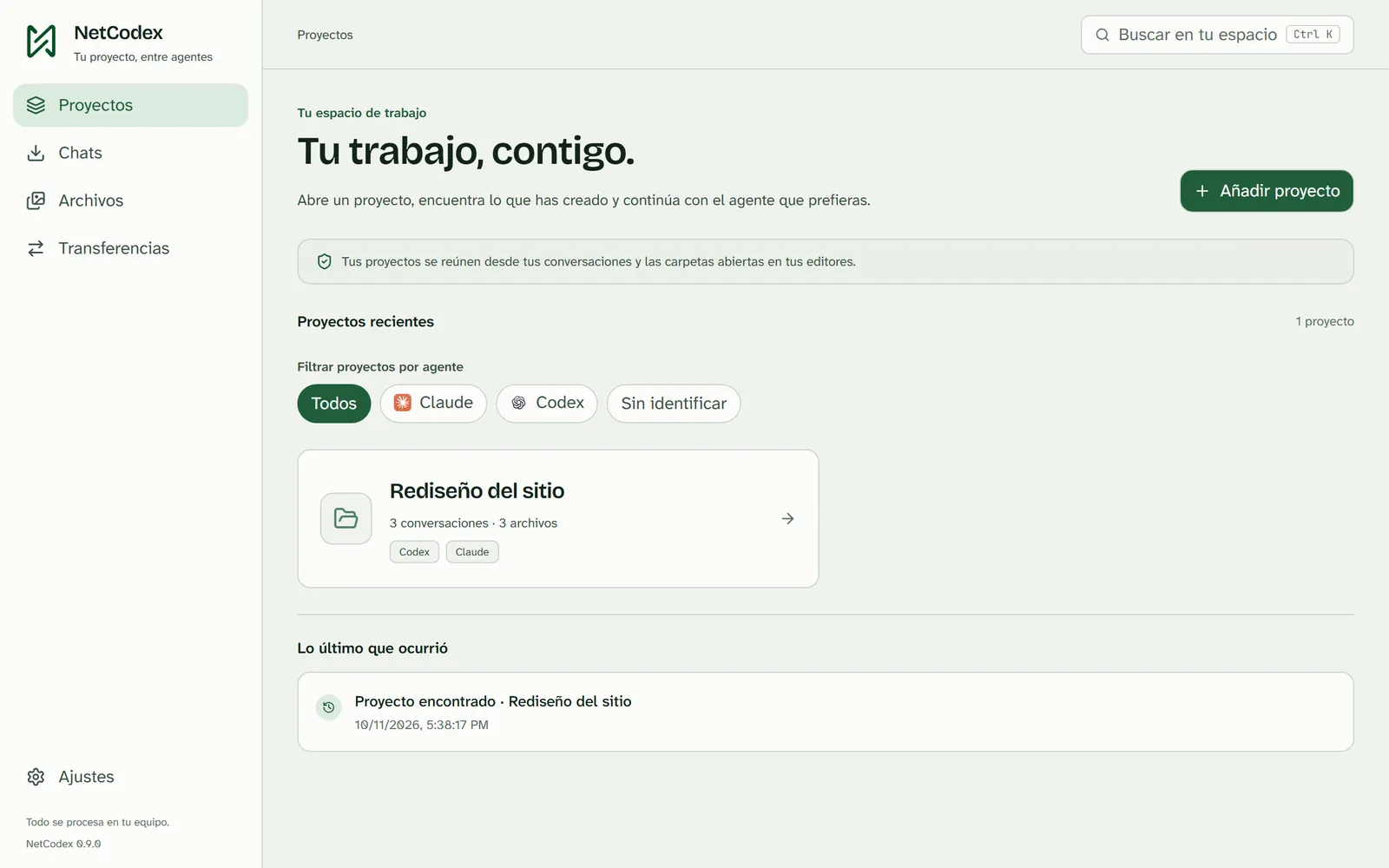
- Resumen (Overview) shows where you left off, what needs follow-up and recent activity.
- Proyectos and Sesiones (Projects, Sessions) group every agent's work by folder; each session has Continue.
- Agentes, Actividad and Favoritos (Agents, Activity, Favorites) show each agent, the timeline and what you starred.
- Integraciones (Integrations) says what NetCodex can do with each platform and imports ChatGPT and Claude.ai exports.
- Ajustes (Settings) holds folders, appearance, terminal and editor, updates and your data. Ctrl K searches everything.
macOS and Linux
There is no installer for macOS or Linux yet. With Python 3.12 or newer you can install the same app with pipx and open it with netcodex desktop. These installs do not update themselves.
Uninstall
Open Windows Settings → Apps → Installed apps, find NetCodex and choose Uninstall. Your chats and exported files are not touched. Settings stay in %APPDATA%\NetCodex; delete that folder if you want to remove them too.
Screenshots show sample data.