Automatic updates
NetCodex checks for new versions by itself, verifies that each update really comes from NetCodex, and installs it with one click.
How it works
NetCodex checks for a new version
A few seconds after the window opens, and then every 6 hours, NetCodex downloads a small release file from the NetCodex website and checks its digital signature with a key built into the app. A file without a valid signature is ignored.
A notice appears when there is a newer version
A dialog shows the new version and what's new. Update now downloads it, Later hides it until you open NetCodex again (or for 24 hours) and Skip this version stops reminding you about that version. While an update is pending, Update available appears next to the version in the sidebar. If NetCodex is minimized or behind another window, its taskbar button flashes and Windows shows a notification (once per version).
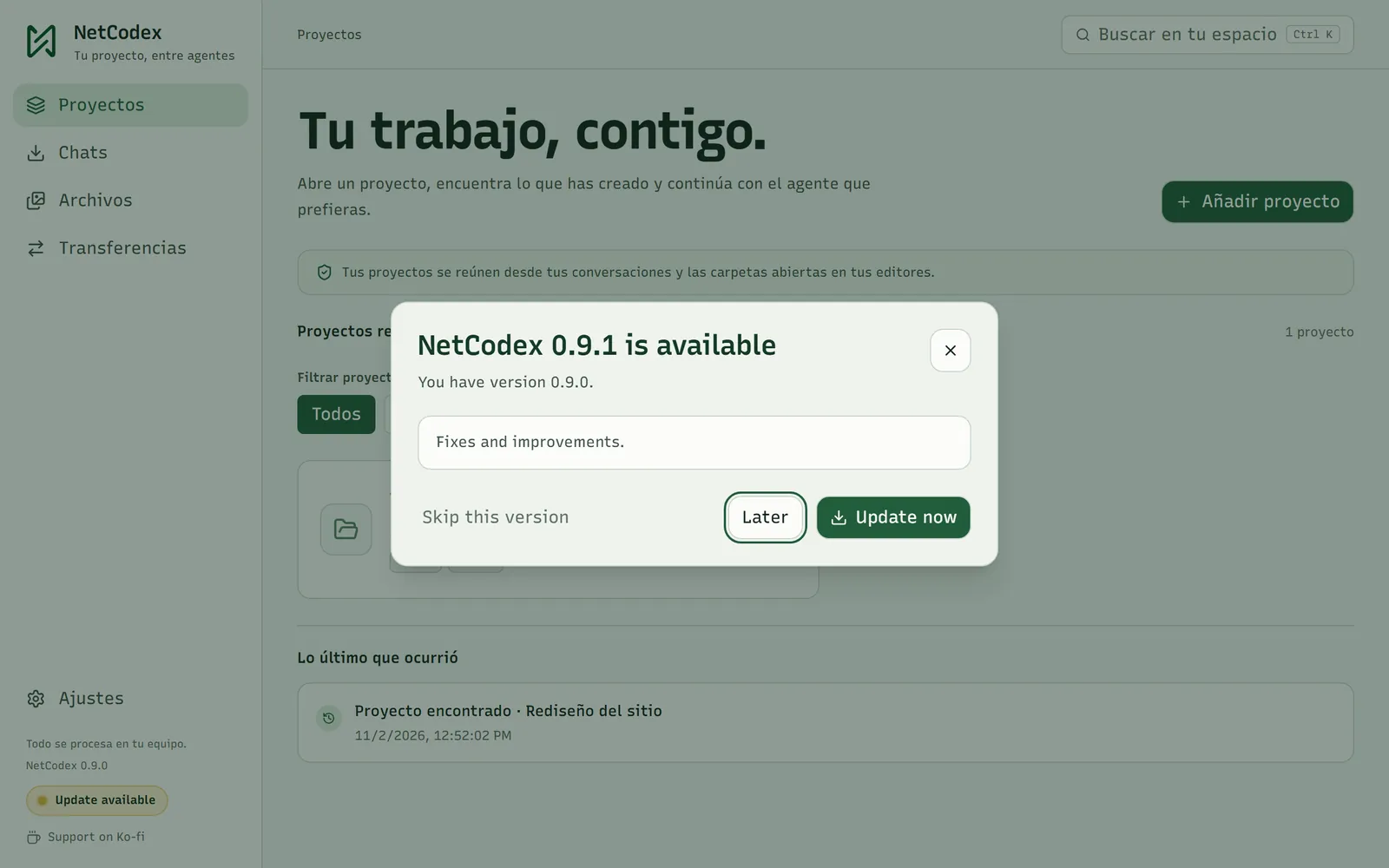
The update notice. Nothing is installed until you choose Update now and then Restart to update. Update now
NetCodex downloads the installer in the background with a progress bar and checks that its size and SHA-256 match the signed release file. Then you choose Restart to update: NetCodex closes, the installer updates it silently and NetCodex opens again in a few seconds. If anything does not match, nothing is installed.
The update setting
In Ajustes (Settings) → Updates you can see the installed version, turn Check for updates automatically on or off (it is on by default), turn on Download updates automatically so the download happens by itself and NetCodex only asks you to restart (off by default), and run Check for updates whenever you want.
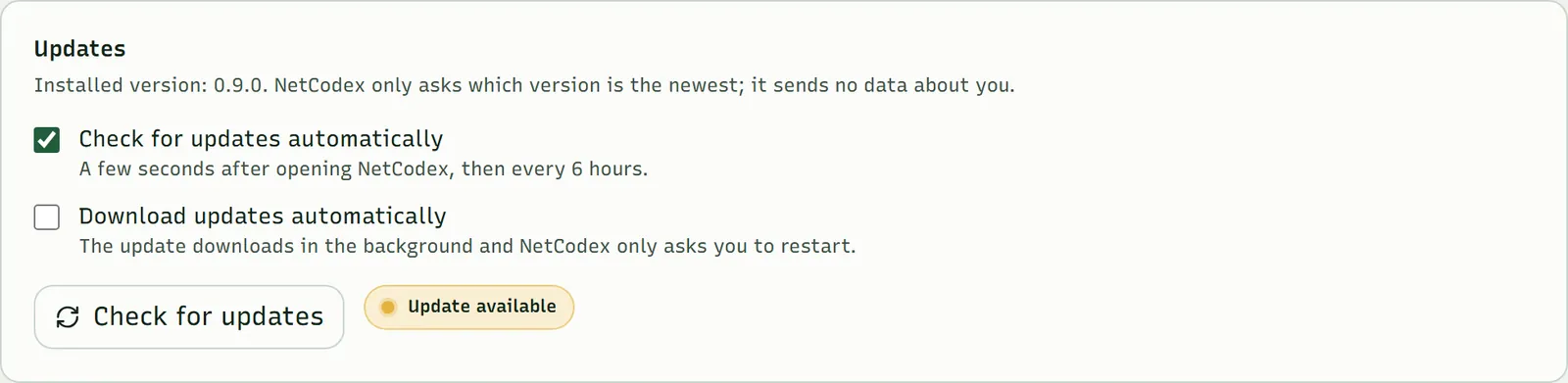
Check manually
- Open Ajustes (Settings) at the bottom of the sidebar.
- In Updates, choose Check for updates.
- NetCodex tells you that you have the latest version, or opens the update dialog (also for a version you skipped).
What is sent
Only the request for the release file (and, when you choose Update now, the installer download). No identifiers, no usage data and nothing about your chats. If you are offline the check fails quietly and is tried again later. See Privacy.
Portable and pip installs
The portable .exe and installs made with pipx or uv cannot replace themselves. They still show the notice, with a Download button that opens the new version.
Screenshots show sample data.