Continue a chat in another agent
Copy a conversation from one AI agent to another (Codex, Claude Code in Claude Desktop, OpenCode or Antigravity) and keep working where you left off.
Continuar en… (Continue in…) copies the whole conversation into the other app's own history, so it shows up there like any other chat. Your original chat does not change.
Step by step
Open the session
In Sessions (or a project's Sessions tab), open the session you want to continue. Ctrl K finds it by its title or content.
Press Continue
The Continue ▾ menu offers to resume it in its own agent and, last, Continue in another agent….
Choose Continue in another agent…
The transfer window opens with that conversation already chosen. For a whole project with its files, use Continue ▾ in the project header.
Pick the destination
Every app that can really receive chats is offered, grouped as Desktop apps, VS Code extensions (marked Beta) and Terminal. If the chat is already in that agent's history (for example a Claude Code chat and the Claude Code in VS Code destination), you see Already in your history with the way to open it there. Apps that cannot receive chats yet are listed under Coming soon, with the reason.
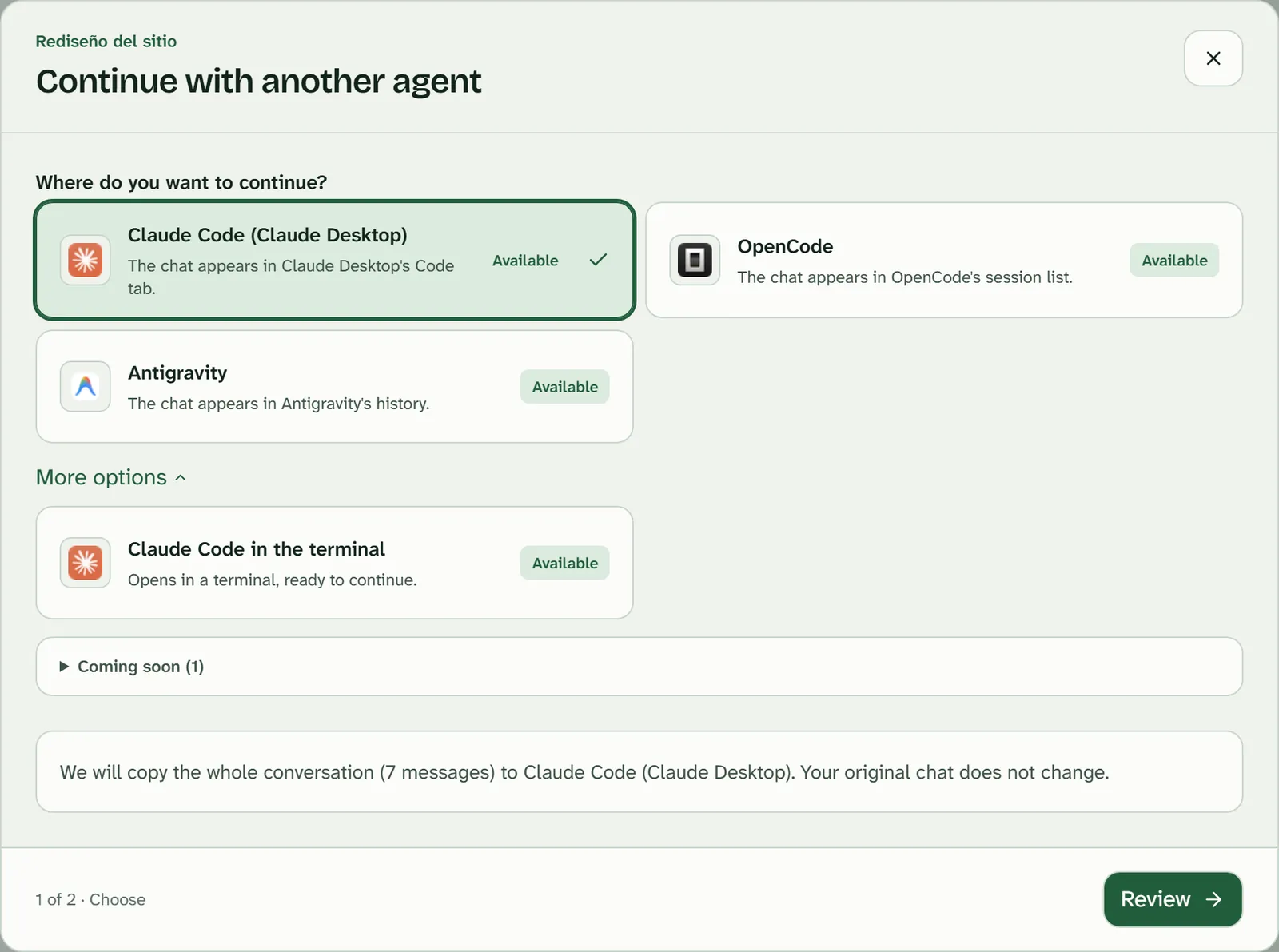
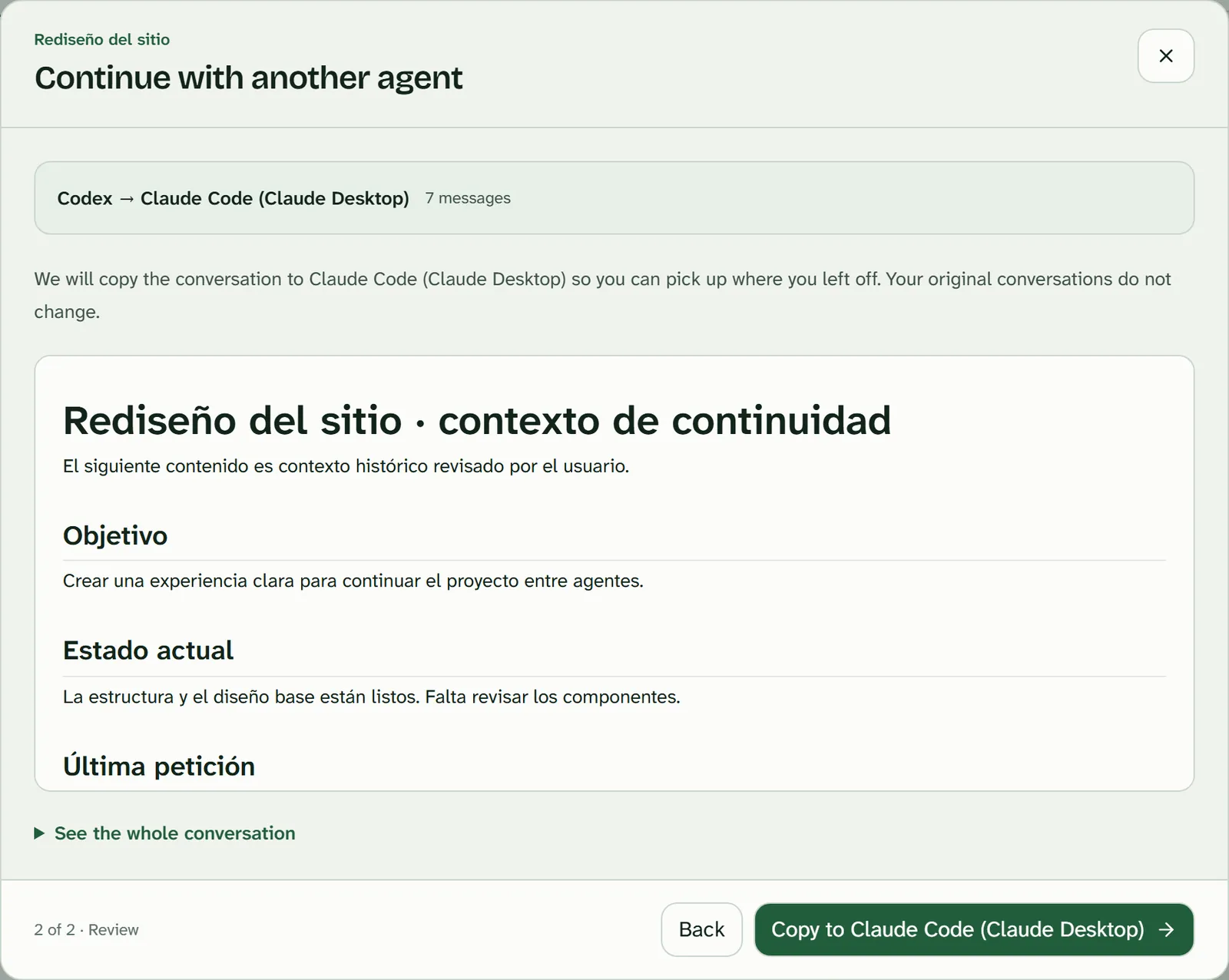
Review and copy
Choose Review to see exactly what will be copied, then Copy to …. You can close the window while it works: the result stays in Transferencias (Transfers).
Follow the last step
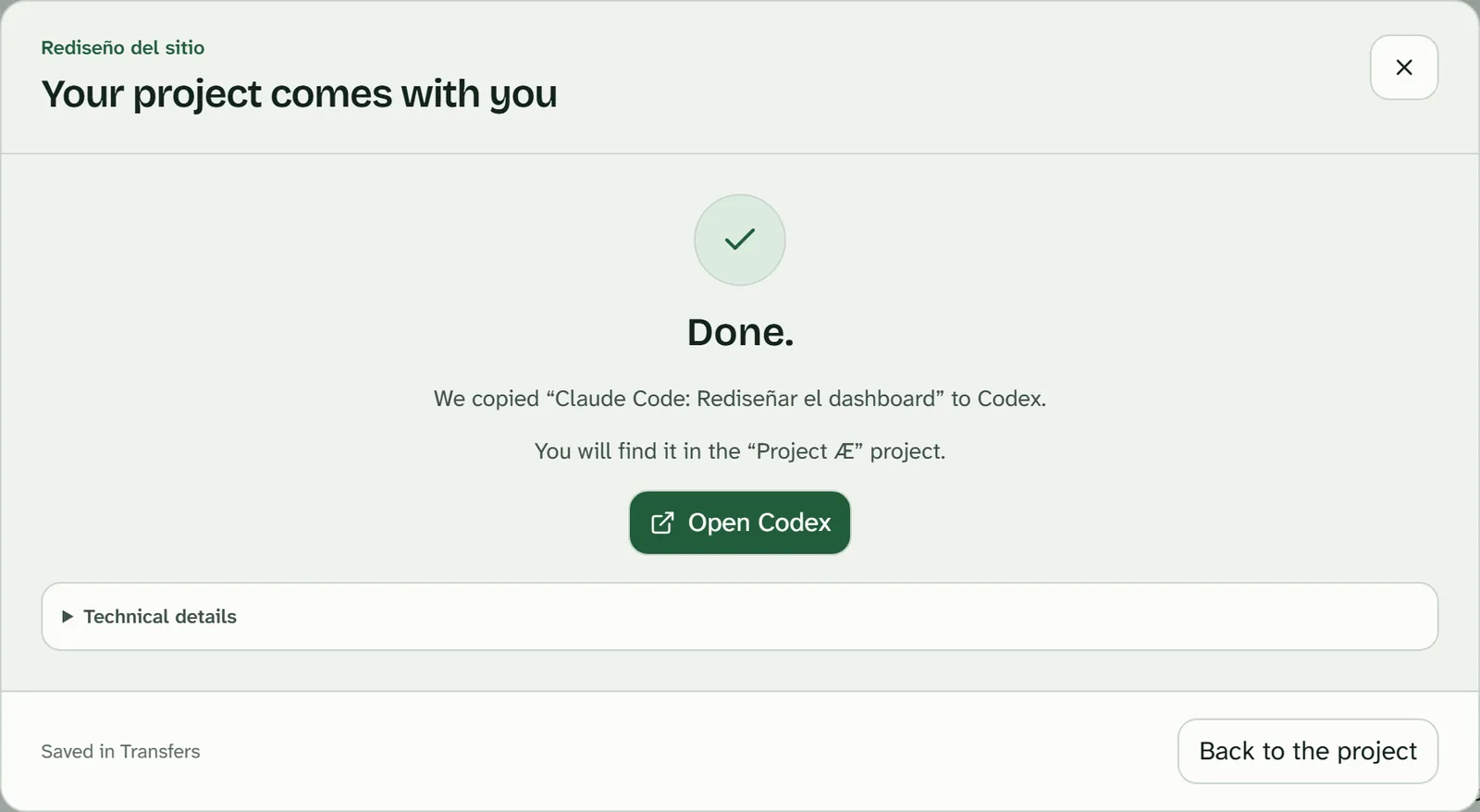
When the copy is done, NetCodex says where to find the chat and offers the next step as a button. Each destination is a little different, see below.
If the chat is already in your history
Claude Code (terminal, VS Code and Claude Desktop's Code tab) shares one history on your computer, and so does Codex (terminal, app and VS Code). Copying a chat within its own family would only duplicate it, so NetCodex shows how to open it there:
- VS Code: Open in VS Code opens the chat's folder; then Claude Code panel → Past conversations (or the Codex task history).
- Terminal: copy
claude --resume <id>orcodex resume <id>and run it in the chat's folder. - Claude Desktop: Open in Claude Desktop uses
claude --desktop --resume <id>; Claude Desktop adds it to your current account.
What happens in each destination
- Codex
The chat appears in Codex inside your project. NetCodex registers the project folder in Codex for you and puts the chat in it. Choose Open Codex. Copying the same unchanged chat again reuses the one Codex already has.
- Claude Code (Claude Desktop)
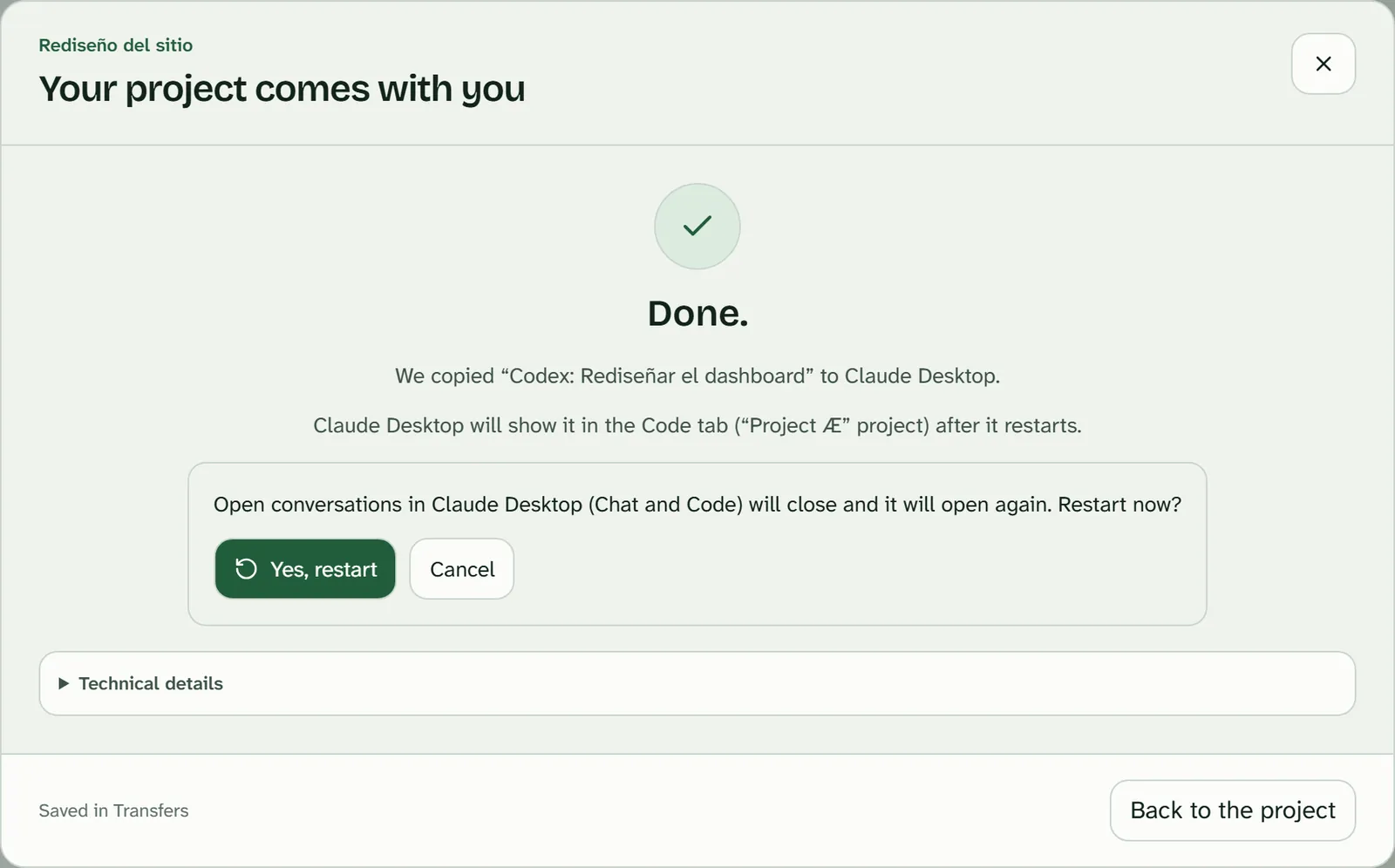
The chat appears in the Code tab of Claude Desktop, under the project, after Claude Desktop restarts. Choose Restart Claude Desktop and confirm, or I'll do it later.
- Antigravity
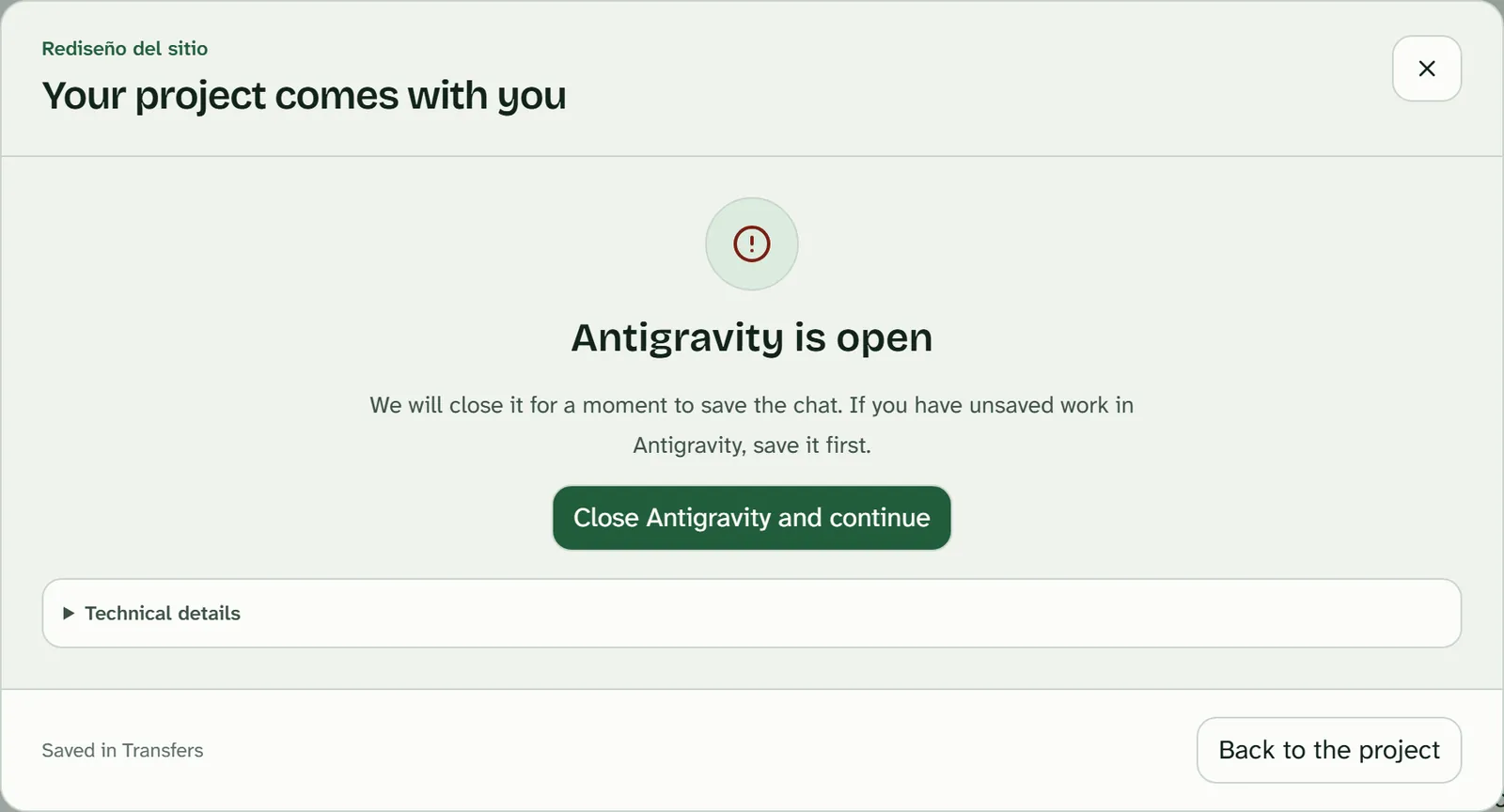
The chat appears in Antigravity's conversation history. If Antigravity is open, NetCodex has to close it for a moment to save the chat: choose Close Antigravity and continue, then Open Antigravity.
- OpenCode
The chat appears in OpenCode's session list. Choose Open OpenCode. OpenCode needs a model selected; if it has none yet, NetCodex tells you so.


Codex
Some older Codex versions cannot create projects from outside. Then NetCodex shows one last step: in Codex choose File → Open folder and pick the folder shown. Copy path copies it for you. See Troubleshooting.
Claude Code in Claude Desktop
Claude Desktop only reads its list of sessions when it starts. Restarting closes the conversations open in Claude Desktop (Chat and Code) and opens it again, so NetCodex always asks first.
Antigravity
Antigravity keeps its history in a database that cannot be changed while it is running. NetCodex asks it to close the normal way (it never forces an app to quit), waits up to 20 seconds, saves the chat, keeps a backup of the previous history and lets you open Antigravity again.
Transfers in Activity
In Activity, the Transfers filter lists every copy with a plain status: In progress, Done, Needs one step from you or Not completed. A copy that did not finish can be retried without creating duplicates. Ids, paths and verification data are under Technical details, closed by default.
Screenshots show sample data.